Submagic Free Trial - Does It Work Before You Pay?
Submagic lets new users upload and edit three short videos without entering a credit card. You can inspect the automatic captions and editing tools before paying, but official help documentation says a subscription is required to download the finished video without a watermark.
Put three real clips through the test
No card is required to begin. Use the allowance on your normal footage so you can see how much editing the first pass actually saves.
Activate the Submagic Free Trial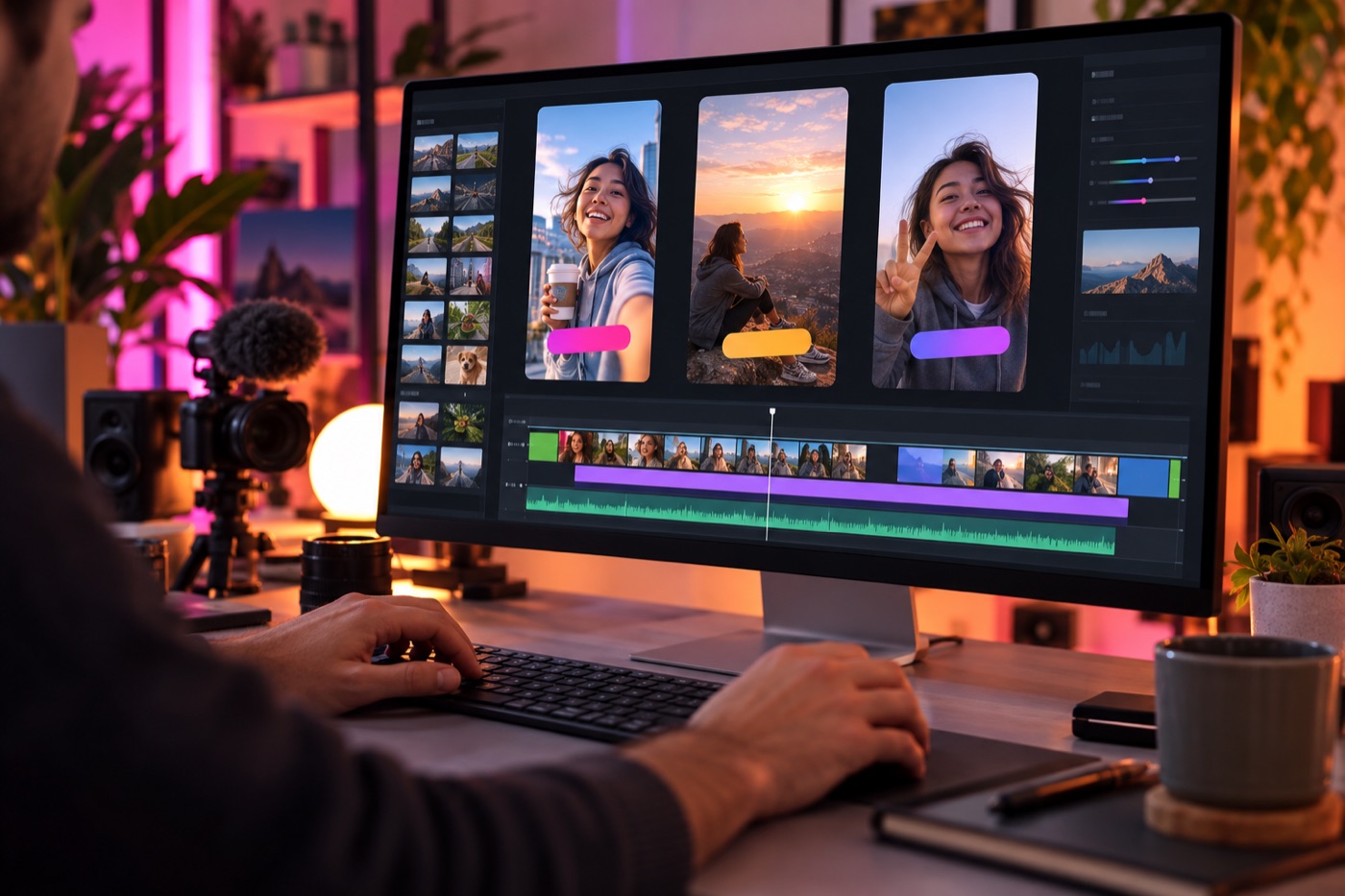
This is a product test rather than a wide-open free editor. Three projects are enough to judge caption accuracy, visual style and how much cleanup the automated edit needs. They are not enough to waste on three versions of the same easy clip.
The complete Submagic free trial guide covers the wider buying decision, including what to test before choosing a paid plan.
The most useful approach is to bring three deliberately different source videos. One should be clean, one should include the kind of difficult speech you normally record, and one should represent the actual format you intend to publish every week.
Submagic free trial limits
The company describes the offer as a free trial on its help pages and as free access on several product pages. The practical terms are more important than the label: you receive a small project allowance, you can edit the results, and free output carries a watermark.
The trial is therefore best for evaluating the editor, not for producing three pieces of finished client work at no cost. If your buying decision depends on a clean export, budget for at least the entry paid level after you confirm the edit quality.
Features and allowances can change. The account dashboard is the final source for the number of credits charged by a particular action, especially when testing long-to-short clipping rather than a normal short upload.
Prepare the files before signing up
A little preparation keeps the small allowance from vanishing while you hunt for footage. Put three source files in one folder, write down what each file is meant to test, and decide what a passing result looks like.
Testing caption accuracy alone misses half the buying decision. A transcript can be technically correct while the finished short still feels busy, poorly timed or off-brand. Watch the result once with sound and once muted, because a large share of social viewers will encounter it muted first.
Keep the source files reasonably short for the first two tests. A long upload can make it harder to tell whether the editor is slow or the source simply requires more processing. The final project can then mirror your real production format.
Write down the number of transcript corrections, b-roll replacements and timing changes required. Also record the time from upload to a result you would be willing to publish. Those four numbers are more useful than a general impression that the interface felt easy.
The one-afternoon evaluation
- Upload the baseline clip. Leave most settings near their defaults. Count how many words need correction and whether sentence breaks land naturally.
- Push the automatic editor. On the second clip, test silence removal, zooms, b-roll or other automated enhancements you expect to use.
- Rebuild your normal style. On the final clip, adjust fonts, colors, caption placement and brand assets. Note how long the customization takes.
- Inspect the whole path. Review the preview, export restrictions and publishing options. A good edit is less valuable if the final handoff does not fit your workflow.
Do not judge the platform by the flashiest template. Judge the number of manual decisions left after the first automated pass. The strongest time savings come when the initial result is close enough that you are correcting details rather than rebuilding the entire short.
A simple pass-or-fail scorecard
Give one point when the transcript is at least 95 percent correct, one when the caption placement remains readable, one when the automatic cuts preserve the meaning, one when the visual additions fit the subject and one when the complete revision takes less time than your current editor.
A four or five means the paid plan deserves serious consideration. A two or three means you should compare the same source with an alternative. A zero or one means the automation is creating more cleanup than it removes.
This score is deliberately practical. A video can look impressive in a demo and still fail if the editor spends 20 minutes correcting every 45-second clip.
Repeat the muted-view check after your edits. Captions should remain legible on a small screen, emphasized words should match the spoken point and important text should stay clear of platform interface areas. A polished desktop preview can still become cramped after TikTok, Reels or Shorts places controls over the video.
Finally, save a copy of the source and write down the exact template settings. If you upgrade, those notes give you a repeatable baseline for the first paid batch.
What happens when you upgrade
The current monthly plans begin with Starter at $19 per month for 15 videos, followed by Pro at $39 per month for 40 videos and Business at $69 per member per month for up to 100 videos. Annual billing advertises savings of up to 41 percent, bringing the effective monthly rate down.
| Level | Monthly billing | Video allowance | Maximum editor duration |
|---|---|---|---|
| Free access | $0 | 3 test videos | Short-form evaluation |
| Starter | $19/month | 15 videos | 2 minutes |
| Pro | $39/month | 40 videos | 5 minutes |
| Business | $69/member/month | Up to 100 videos | 30 minutes |
Paid plans remove the watermark and raise the production allowance. Higher levels add broader editing, publishing, brand and integration capacity. The Business level is the relevant comparison when API access or high-volume team workflows are central to the purchase.
Before selecting annual billing, run enough paid projects to understand your true monthly volume. A large discount does not save money when the workflow never becomes part of your regular publishing process.
Also inspect the cancellation and renewal language presented during checkout. The free test does not require a card, but a later subscription follows the billing period you select.
Pricing is based on published plan information available at the time of this update. Check the final checkout screen because allowances, add-ons and annual discounts can move.
When the test is worth your time
This offer makes sense for creators, agencies and marketers who already have footage and want to shorten the work between raw clip and social-ready edit. It is especially relevant when animated captions, automatic b-roll, dead-air removal and vertical formatting currently eat up editing time.
It is less useful if you need a traditional desktop timeline with precise layer-by-layer control. This product is built around speed and automated decisions. A full editor may be the better choice when every cut, overlay and motion element must be adjusted manually.
For a broader assessment of the features, pricing and tradeoffs, see our separate Submagic review. That page evaluates the paid product, while this one stays focused on accessing and using the free test.
Creators building avatar-led content can also compare where this finishing step fits inside an automated video clone workflow, including HeyGen generation and n8n handoffs.
If avatar generation is the missing piece, the HeyGen free account guide lays out a separate three-video quality test for the presenter layer.
Questions before you begin
Is a card required?
No. The current pricing and signup language says you can begin without a credit card.
How many projects can be created?
Official help documentation says three short videos can be uploaded and edited for free.
Can the finished file be downloaded clean?
The company says a paid subscription is required for a download without its watermark.
Does the offer include every paid feature?
No. The free test is limited. Paid levels expand video allowances, duration, export quality, brand controls and automation options.
Should all three projects use the same footage?
No. Use three different files so you can evaluate a clean baseline, a difficult recording and the format you intend to publish regularly.
The short answer
The free access is enough to determine whether the editor saves meaningful time. Bring prepared footage, measure the corrections required and assume you will need a paid plan for watermark-free publishing.
Use the allowance on your real footage
Prepare three different clips, create the free account and compare the editing time against your current process.
Activate the Submagic Free TrialResources
- https://digitalverge.net/reviews/submagic-free-trial/
- https://blotato-review.pages.dev/submagic-three-video-trial-test.html
Disclosure: This page may contain a sponsored link. Shoals Marketing may earn a commission if you purchase, at no additional cost to you.